

Modern homes are packed with internet-connected devices. A few years ago, most households only needed Wi-Fi for phones and maybe one laptop. Now things look completely different. Gaming consoles, smart TVs, desktop PCs, NAS systems, streaming boxes, smart home hubs, printers, and security cameras all compete for stable internet connections at the same time. That is exactly why many homeowners suddenly realize their router only has two or four Ethernet ports available. It feels like buying a house with only two power outlets in the entire living room. Eventually, you simply run out of space.
The good news is that adding more Ethernet ports to a router is surprisingly easy. You do not need advanced networking skills, expensive enterprise hardware, or complicated rewiring projects. In most cases, a simple Ethernet switch can instantly expand your wired network and allow multiple devices to connect simultaneously without sacrificing performance. Businesses have relied on Ethernet switches for decades, and now they are becoming increasingly common in homes because wired networking demand keeps growing worldwide. Industry reports show the global Ethernet switch market continues expanding rapidly due to rising network usage and AI-driven infrastructure growth.
This guide explains exactly how to add more Ethernet ports to your router, how Ethernet switches work, which type of switch you should buy, the common mistakes people make during setup, and when replacing the router entirely is the smarter move.
Why Home Routers Usually Run Out of Ethernet Ports Fast
The Rise of Smart Homes and Wired Devices
The average home network today looks more like a small office network than a traditional household setup. Think about how many devices depend on stable internet connections. Smart TVs stream 4K content continuously, gaming consoles download enormous updates, work-from-home PCs rely on low-latency connections, and network storage systems transfer large files around the clock. Wi-Fi handles many devices well, but Ethernet remains the gold standard for speed and reliability.
Wired connections are especially important for devices that need stable bandwidth. Online gaming, video conferencing, Plex servers, and NAS backups all benefit from Ethernet because it eliminates wireless interference and reduces latency. That is why many people eventually prefer hardwired connections for critical devices instead of relying entirely on Wi-Fi. Suddenly, those four router ports disappear quickly. One port goes to a gaming console, another to a desktop PC, another to a smart TV, and another to a network switch or access point. The router reaches capacity almost immediately.
Recent market data also reflects this growing demand for wired networking. Reports indicate millions of households now use Ethernet switches to expand home networks due to increased streaming, gaming, and remote work activity. The trend is only accelerating as internet speeds climb higher and more devices require stable connections.
Why Manufacturers Keep Router Port Counts Low
Many users wonder why router manufacturers do not simply include eight or sixteen Ethernet ports by default. The answer mostly comes down to cost, size, heat, and consumer demand. Most average buyers use Wi-Fi for nearly everything, so manufacturers optimize routers for wireless performance rather than large wired networks.
Adding more Ethernet ports increases production costs and physical size. It also generates additional heat and power consumption. Router companies know that advanced users who need more wired connections can simply attach a switch later. That keeps mainstream routers cheaper while still giving power users flexibility.
There is also a practical design limitation. Home routers focus on combining multiple functions into one device: routing, wireless access, security, NAT, and switching. Adding too many Ethernet ports would push routers closer to enterprise networking equipment, which belongs to an entirely different product category. Manufacturers intentionally separate those markets.
Understanding How Ethernet Expansion Actually Works
What an Ethernet Switch Does
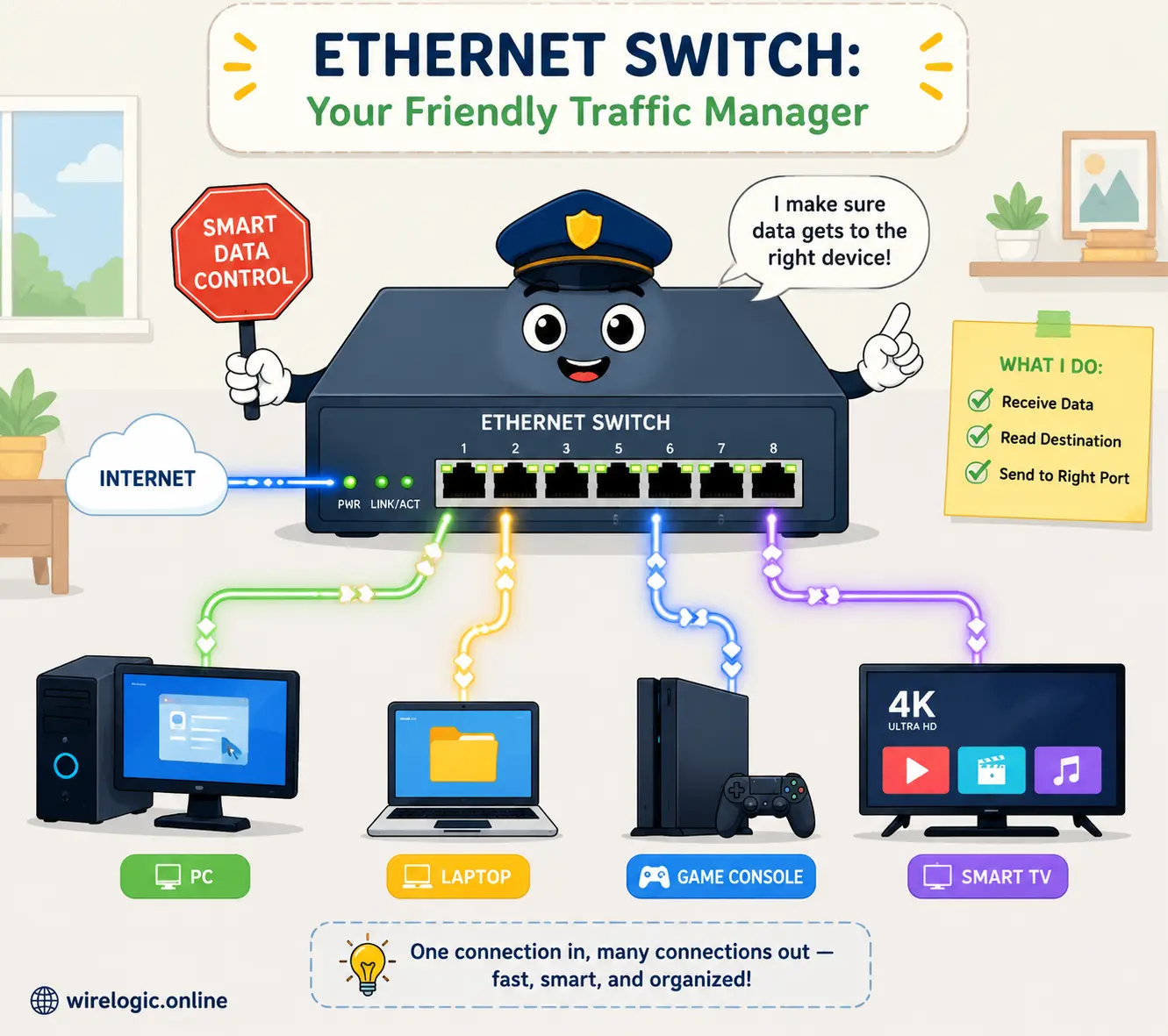
An Ethernet switch is essentially a traffic manager for wired network devices. Imagine your router as a busy highway entrance ramp. A switch acts like a multi-lane traffic distribution center that directs vehicles efficiently toward different destinations. Instead of plugging every device directly into the router, you connect a switch to the router, then connect all additional devices to the switch.
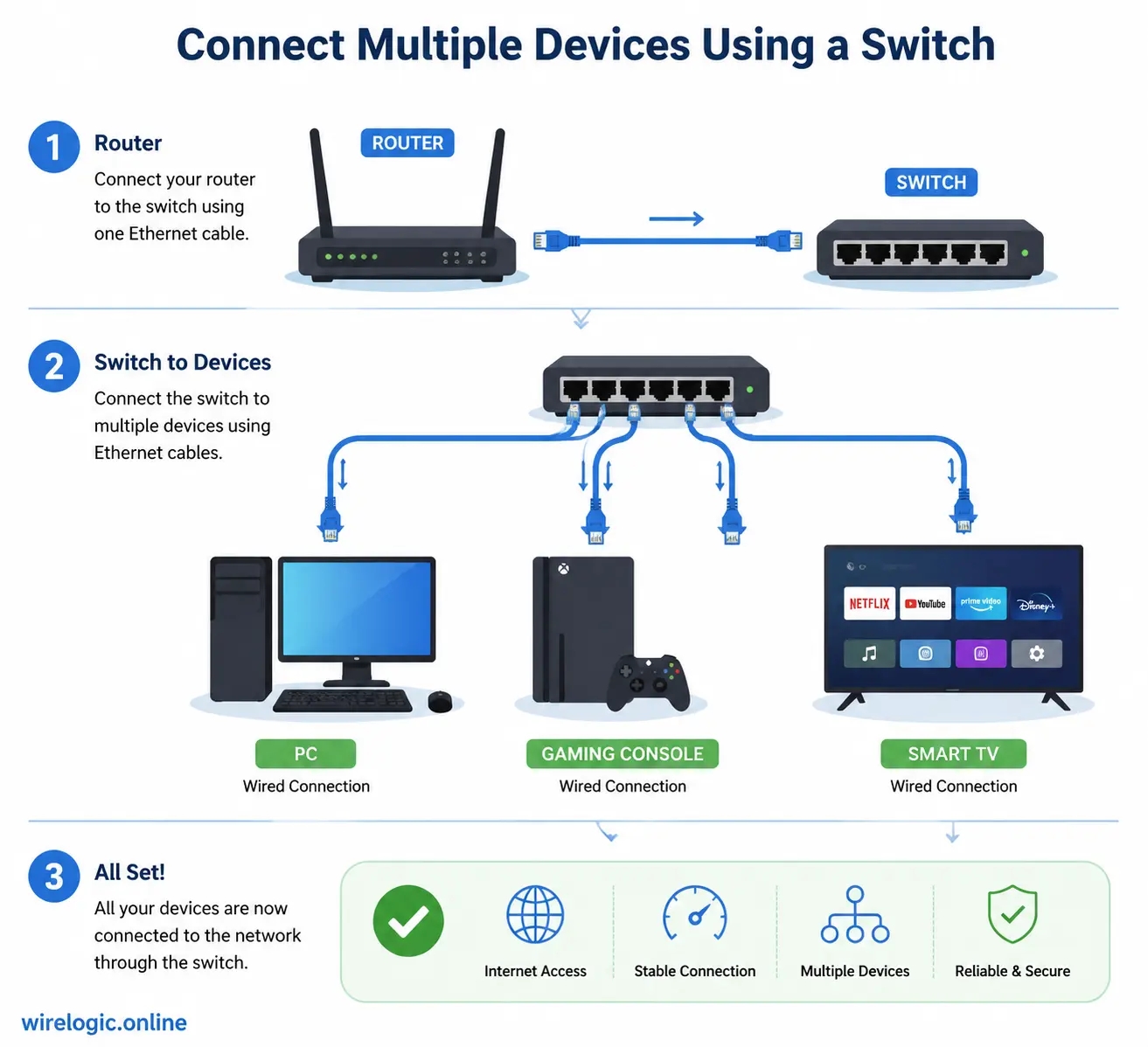
The process is remarkably simple. One Ethernet cable runs from the router to the switch. The switch then expands that single connection into multiple available Ethernet ports. Your devices communicate normally, receive internet access normally, and operate as though the router had those ports built in from the beginning.
Most home users choose unmanaged switches because they are plug-and-play devices. No configuration is required. You connect the cables, power the switch on, and the network immediately starts functioning. This simplicity is why Ethernet switches became so popular in homes. Reddit networking communities frequently recommend inexpensive unmanaged Gigabit switches for everyday use because they work reliably without complicated setup.
Difference Between a Router and a Switch
People often confuse routers and switches because both involve Ethernet ports, but they serve completely different purposes. A router connects your home network to the internet. It assigns IP addresses, manages traffic between devices and the internet, and often includes Wi-Fi functionality.
A switch does not replace the router. Instead, it expands the local network. Think of the router as the brain and the switch as an extension cord with intelligence built into it. The router decides where internet traffic goes, while the switch efficiently distributes local wired connections among devices.
This distinction matters because some users mistakenly buy a second router hoping to gain more Ethernet ports. That approach can create double NAT issues, network conflicts, and slower performance unless configured carefully. A switch is almost always the cleaner and simpler solution.
The Simplest Way to Add More Ethernet Ports
Connecting an Ethernet Switch to Your Router
Adding more Ethernet ports takes only a few minutes. The process is so simple that even beginners can complete it without technical expertise. Here is how it works:
- Buy a Gigabit Ethernet switch.
- Connect the switch to power.
- Run one Ethernet cable from your router to any port on the switch.
- Connect your wired devices to the remaining switch ports.
That is it. Most unmanaged switches automatically detect network settings and negotiate speeds without user intervention. Modern switches support auto-MDI/MDIX, meaning you do not need special crossover cables anymore.
The only important detail is understanding usable port count. If you buy an 8-port switch, one port connects to the router, leaving seven usable device ports available. That still dramatically expands your network compared to the standard four-port router setup.
Plug-and-Play Setup Explained
Unmanaged Ethernet switches are intentionally designed for simplicity. Once connected, they automatically learn device addresses and direct traffic efficiently between devices. You do not need apps, configuration dashboards, or firmware adjustments in most cases.
This simplicity explains why unmanaged switches dominate residential deployments. Market reports show Gigabit unmanaged switches remain extremely popular in home networking because they are affordable and easy to use. Most people simply want additional ports without turning networking into a weekend engineering project.
Indicator lights on the switch also make troubleshooting easier. A blinking light typically indicates active data transfer, while color-coded LEDs may indicate connection speeds like 100Mbps, 1Gbps, or 2.5Gbps depending on the hardware.
Choosing the Right Ethernet Switch
Managed vs Unmanaged Switches
Choosing between managed and unmanaged switches depends entirely on your networking needs. Most households only need unmanaged models, but some advanced users benefit from management features.
| Feature | Unmanaged Switch | Managed Switch |
|---|---|---|
| Setup Complexity | Very Easy | Moderate to Advanced |
| Configuration Options | None | Extensive |
| VLAN Support | No | Yes |
| Traffic Monitoring | No | Yes |
| Price | Lower | Higher |
| Best For | Home Users | Advanced Networks |
When an Unmanaged Switch Is Enough
For typical home use, unmanaged switches are perfect. If your goal is simply adding more Ethernet ports for gaming consoles, smart TVs, desktops, or streaming devices, unmanaged switches deliver exactly what you need. They are affordable, reliable, silent, and maintenance-free.
Most users never need VLAN segmentation, advanced QoS controls, or port monitoring. Buying a managed switch for casual home use is like purchasing a commercial espresso machine just to make instant coffee. It works, but it is unnecessary overkill.
Community discussions consistently show that basic Gigabit unmanaged switches perform perfectly for normal internet plans and home entertainment systems.
Situations Where Managed Switches Help
Managed switches become useful when your network grows more complex. Power users with NAS systems, home labs, IP cameras, VLAN-separated guest networks, or multiple access points may benefit from advanced management features.
Managed switches allow traffic prioritization, remote monitoring, bandwidth controls, and network segmentation. They are especially valuable in environments with dozens of connected devices or sensitive security requirements.
If you run servers, host virtual machines, or experiment with advanced networking, managed switches provide valuable flexibility. Otherwise, unmanaged models remain the best value.
How Many Ports Should You Buy
A common mistake is buying a switch with exactly the number of ports currently needed. Networks almost always grow over time. Smart homes continuously add new devices, and future expansion quickly becomes necessary.
If you currently need four extra ports, buying an 8-port switch usually makes more sense than buying a 5-port model. The price difference is often small, but the additional flexibility matters later.
Think about future devices too:
- Security cameras
- NAS storage
- Gaming systems
- Smart TVs
- Wireless access points
- Desktop PCs
- Streaming boxes
Planning ahead prevents another upgrade six months later.
Network Speed Considerations Before Expanding
Gigabit vs 2.5Gb vs 10Gb Ethernet
Network speed matters more than many people realize. Buying the wrong switch can accidentally bottleneck your internet or local file transfers.
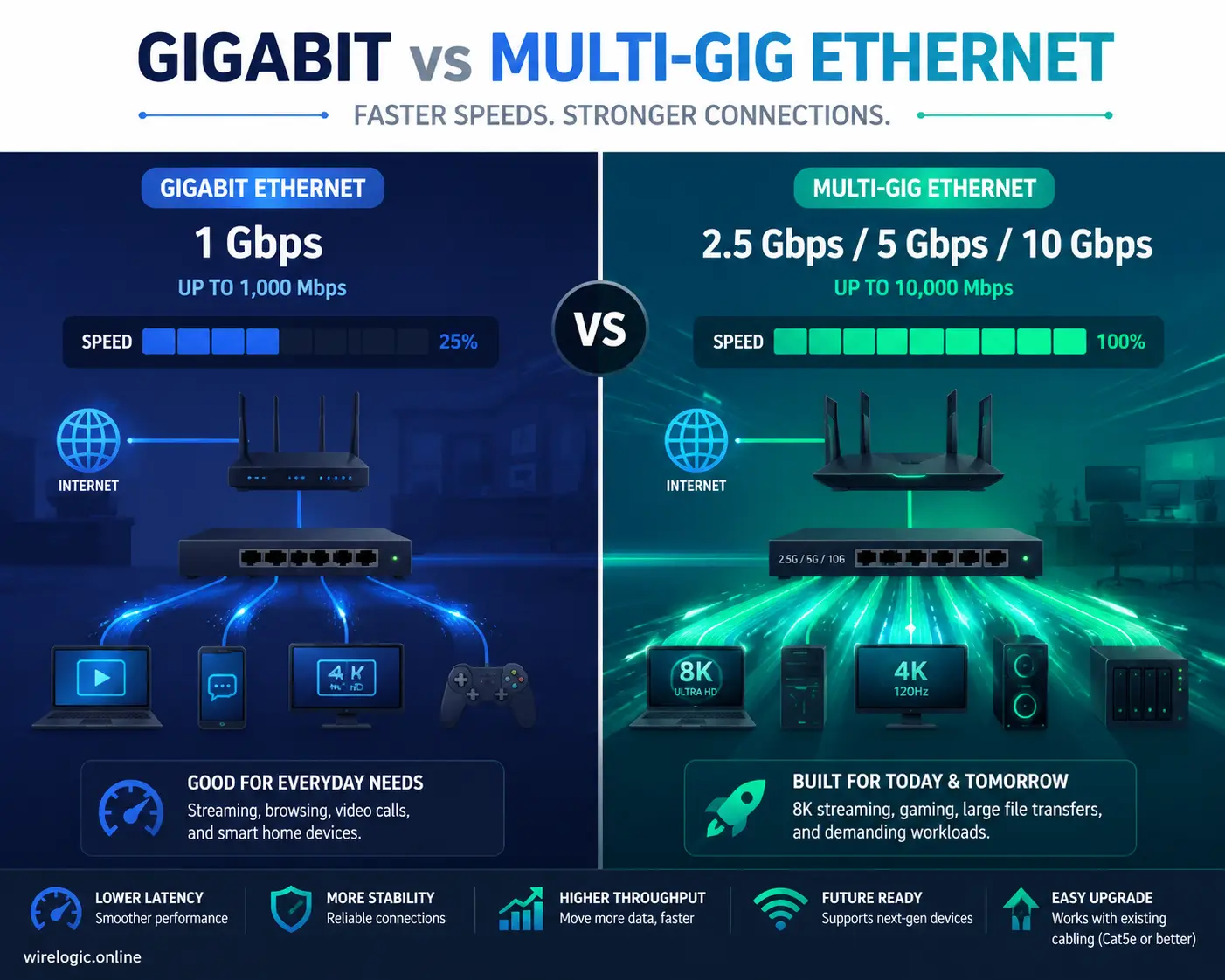
Most homes today still use Gigabit Ethernet, which supports speeds up to 1Gbps. For internet plans under 1Gbps, Gigabit switches work perfectly. Reddit networking discussions repeatedly note that Gigabit remains sufficient for most households.
However, multi-gig internet plans are becoming increasingly common. Some fiber providers now offer 2Gbps, 5Gbps, or even 10Gbps service. In those situations, traditional Gigabit switches can become bottlenecks.
| Ethernet Standard | Maximum Speed | Typical Use Case |
|---|---|---|
| Fast Ethernet | 100Mbps | Very old hardware |
| Gigabit Ethernet | 1Gbps | Standard home networking |
| 2.5Gb Ethernet | 2.5Gbps | Faster home internet |
| 10Gb Ethernet | 10Gbps | Professional or NAS-heavy setups |
Industry trends also show increasing adoption of faster Ethernet technologies as networking demand grows globally.
Cable Quality and Performance Limits
Even the best switch cannot overcome bad cables. Ethernet performance depends heavily on cable quality and category ratings.
Here is a quick overview:
| Cable Type | Maximum Recommended Speed |
|---|---|
| Cat5 | 100Mbps |
| Cat5e | 1Gbps to 2.5Gbps |
| Cat6 | Up to 10Gbps short range |
| Cat6a | 10Gbps longer range |
Many people unknowingly use old Cat5 cables that silently limit speeds to 100Mbps. That can make a fast internet connection feel painfully slow. Always verify cable quality before blaming the router or switch.
Common Mistakes That Slow Down Wired Connections
Using Old Ethernet Cables
Old cables are one of the biggest hidden networking problems. A single outdated cable can cripple speeds across an otherwise modern setup. Users often upgrade internet plans and switches but forget the cabling infrastructure entirely.
Cheap damaged cables can also cause intermittent packet loss, disconnects, and unstable speeds. Ethernet cables may look identical externally while performing dramatically differently internally.
If speeds seem suspiciously low, swapping cables should always be one of the first troubleshooting steps.
Connecting Devices Incorrectly
Another surprisingly common issue involves incorrect network topology. Some users accidentally chain multiple routers together improperly or connect devices through outdated networking equipment.
The cleanest setup is usually:
- Modem → Router → Switch → Devices
Avoid unnecessary intermediate devices whenever possible. Each extra layer adds complexity and potential performance issues.
People also occasionally connect switches incorrectly by using uplink misunderstandings from older networking generations. Modern switches simplify this process dramatically, but confusion still happens occasionally.
Buying a Slow Switch by Accident
Not all Ethernet switches are equal. Some inexpensive switches still use Fast Ethernet ports limited to 100Mbps. Buying one accidentally can instantly throttle a Gigabit internet plan.
Always verify:
- Port speed ratings
- Total switching capacity
- Ethernet standard support
- Multi-gig compatibility if needed
Home networking forums regularly discuss situations where users unknowingly buy outdated 100Mbps switches and wonder why performance collapsed afterward.
How to Test Whether the New Ethernet Ports Work Properly
Running Speed Tests
After installation, testing the network ensures everything functions correctly. The easiest method is running internet speed tests from a wired device connected through the switch.
Compare the results with:
- Direct router connection speeds
- Your ISP plan speeds
- Previous device performance
If speeds remain similar, the switch is functioning correctly. Minor variations are normal due to internet congestion and server conditions.
Local network testing matters too. File transfers between computers or NAS systems can reveal internal bottlenecks even when internet speeds appear normal.
Checking Router and Switch Indicator Lights
Ethernet LEDs provide valuable troubleshooting information. Most switches use indicator lights to display:
- Active connections
- Data activity
- Port speeds
For example:
- Green may indicate Gigabit speeds
- Amber may indicate 100Mbps speeds
If a supposedly Gigabit connection only negotiates at 100Mbps, the issue often involves damaged cables or incompatible hardware.
Monitoring these indicators can quickly identify faulty connections without advanced diagnostic tools.
When a Router Upgrade Makes More Sense
Signs Your Router Is Too Old
Sometimes adding a switch solves the problem perfectly. Other times, the router itself becomes the real limitation. Expanding ports on an outdated router is like attaching a trailer to a failing car engine. The extra space helps, but the underlying system still struggles.
Signs your router may need replacement include:
- Frequent disconnects
- Poor Wi-Fi coverage
- Limited Gigabit support
- Old Wi-Fi standards
- Weak CPU performance
- Inability to handle many devices
Older routers may also lack multi-gig WAN ports, which limits newer high-speed internet plans regardless of switch upgrades.
Wi-Fi Performance vs Wired Expansion
Some users focus heavily on wired expansion while ignoring weak wireless performance. A switch only improves Ethernet capacity. It does not enhance Wi-Fi speed, coverage, or stability.
If your home suffers from poor wireless coverage, upgrading to a modern Wi-Fi 6 or Wi-Fi 7 router may provide more noticeable improvements than simply adding ports. Sometimes the best solution combines both:
- New router for improved wireless performance
- Ethernet switch for additional wired capacity
That creates a balanced network capable of handling both modern Wi-Fi devices and high-performance wired systems.
Conclusion
Adding more Ethernet ports to a router is one of the simplest and most effective networking upgrades you can make. Most routers run out of ports quickly because modern homes rely heavily on wired devices for gaming, streaming, remote work, and smart home connectivity. Instead of replacing the entire router immediately, an Ethernet switch provides an affordable and reliable way to expand your network within minutes.
For most households, an unmanaged Gigabit switch offers the ideal balance of simplicity, performance, and affordability. Plug it into the router, connect your devices, and the network instantly grows. At the same time, choosing the correct speed standard and cable quality matters because outdated hardware can quietly create major bottlenecks.
As internet speeds continue rising and homes become increasingly connected, Ethernet switches are becoming standard household networking tools rather than niche accessories. Whether you need extra ports for a gaming setup, NAS storage, smart TVs, or a growing smart home, expanding your wired network is usually easier than most people expect.
FAQs
1. Can I add Ethernet ports to any router?
Yes, almost any router can support additional Ethernet ports using a network switch. You simply connect the switch to one of the router’s LAN ports.
2. Will an Ethernet switch slow down my internet speed?
A proper Gigabit or multi-gig switch should not slow your internet speed if it matches or exceeds your internet plan speed.
3. Do unmanaged Ethernet switches need configuration?
No. Unmanaged switches are plug-and-play devices that work automatically once connected.
4. Is it better to buy a new router or add a switch?
If your router still performs well, adding a switch is usually cheaper and easier. If the router itself is outdated or unstable, upgrading the router may make more sense.
5. What size Ethernet switch should I buy?
Buy more ports than you currently need because networks tend to grow over time. An 8-port switch is often a smart starting point for home users.

Nico Hartwell is a 26-year-old American content creator living in Spokane, Washington. He has developed expertise in software, productivity, and emerging technology through years of independent research and professional writing. As a writer for wirelogic.online, Nico creates informative, balanced articles designed to help readers make confident decisions using accurate, well-organized information.